Guide 03
Import TXT & events KML
Prepare a native G-NetTrack workflow and verify the imported session.
Pair the files
Select the TXT file from your drive-test export in the log area. Put the matching events KML in the events area. Multiple files are supported; choose files from the session you intend to analyze.
The log is the measurement source. KML supplies events and locations; it does not replace the signal measurements in the TXT file.
Interface walkthrough
Bring your drive-test files
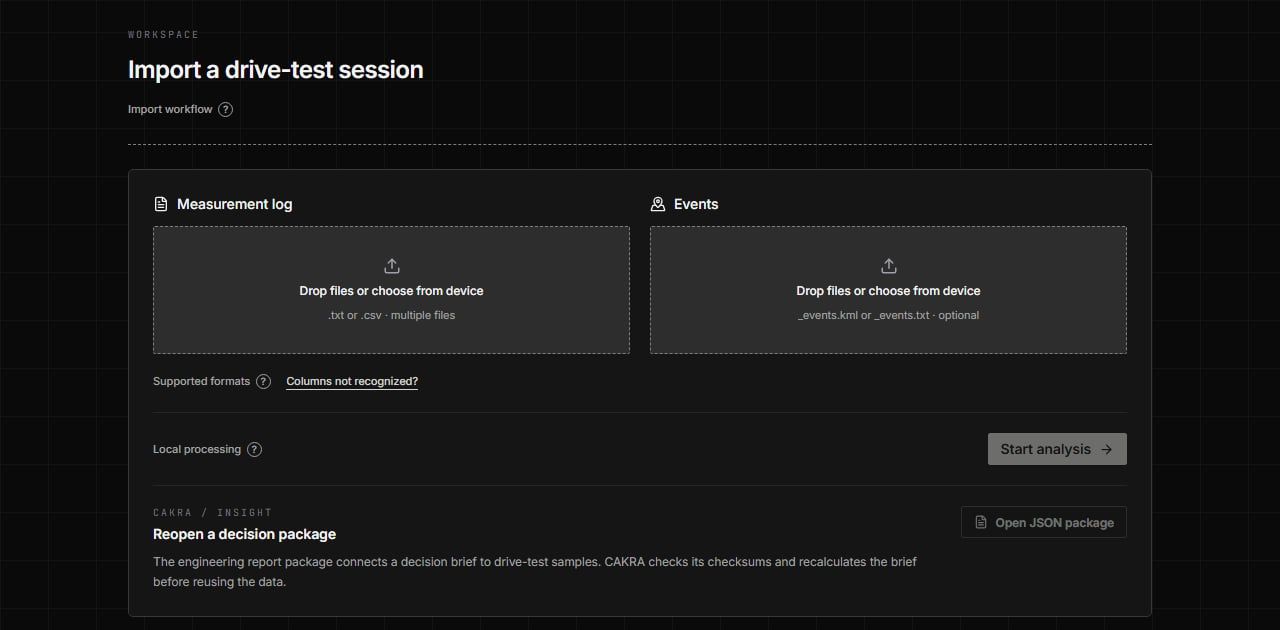
Choose your TXT or supported CSV export. Selecting files does not start analysis.
Check the result
After import, compare the point count and timestamps with the source. Confirm that coordinates fall on the expected route and that speeds have plausible units. Missing values remain missing rather than being converted to zero.
- 1Check the operator and LTE/NR fields.
- 2Review valid GPS points and excluded measurements.
- 3Inspect several events against their original timestamps.
Minimal CSV example
Use this synthetic example to understand the column layout. It is not an operator measurement or a performance benchmark. Real exports may contain many more columns.
Timestamp,Latitude,Longitude,RSRP,RSRQ,SNR,Operator,Technology
2025-11-03 21:10:43,-6.9175,107.6191,-85,-10,12,Example,LTE
2025-11-03 21:10:44,-6.9176,107.6192,-92,-12,8,Example,LTE
Format compatibility and rejection
G-NetTrack TXT is the best-tested path. Compatible CSV exports need recognized columns; TEMS/Nemo candidates remain experimental. Proprietary binary project files, PDFs and spreadsheets renamed to .csv are not measurement logs.
Read rejection/duplicate counts and the actual header mapping. Match files by session and timestamps, not filenames alone. If columns are not recognized, use the format-request page with a sanitized header/sample rather than uploading confidential full logs.