Guide 02
Your account & browser
Everything you need to start using CAKRA. No installation required.
Open CAKRA in your browser
Visit cakramon.online in a current desktop browser. CAKRA is a web app: you do not need a desktop installer, source code or a browser extension. A larger screen is useful for maps and technical inputs.
Keep an internet connection for sign-in, access checks, basemaps and Cici. Measurement files are processed locally, but online features are not guaranteed offline. If the interactive map cannot run on your device, try its 2D view.
Create and confirm your account
Choose Get started, complete registration with your own email, then follow the confirmation email before signing in. Use Sign in if you already have an account. Never share your password in a support request.
A verified account receives two starter analysis credits. Each analysis run spends one credit. Basic, Pro and Max subscriptions add a new monthly allowance; Max and authorized Enterprise seats unlock advanced execution.
Prepare your first session
Have a readable G-NetTrack TXT or compatible CSV log ready. Keep its original header, timestamps and units. An events KML/TXT is optional and goes in its own input. Extract ZIP archives first.
Open Upload New File, select the files and follow the import guide. Selecting a file is preparation; Start analysis is the separate action that processes the session.
Find guidance without leaving your work
Workspace sections use short titles. The question mark next to a section, card title or field holds its full explanation, units, assumptions and usage boundaries. Hover with a mouse, click/tap to keep the note open, or focus it with Tab. Enter or Space toggles it; Escape or a click outside closes it.
Warnings, source status, stale results, access requirements, confirmations and result values remain visible. A question mark never changes inputs, runs a prediction or starts processing. Help follows the selected EN/ID language and stays positioned within the viewport.
Sign in securely
Sign in with your own confirmed email and password. CAKRA opens the account-security step before the workspace. If you already use an authenticator, enter its current six-digit code; the workspace opens only after verification.
For a new authenticator, choose Set up authenticator, open an authenticator app on your device, add an account by scanning the private QR, then enter its code. A first-time ordinary account without an enrolled factor may continue without setup. Once enrolled, verification cannot be skipped.
Keep the QR and codes private. An incorrect or expired code does not remove your factor; use the next current code and check your authenticator device clock. If you lose access to the authenticator, contact official support. Cancel setup removes only the unfinished factor, not an existing verified authenticator.
Interface walkthrough
Authenticator before the workspace
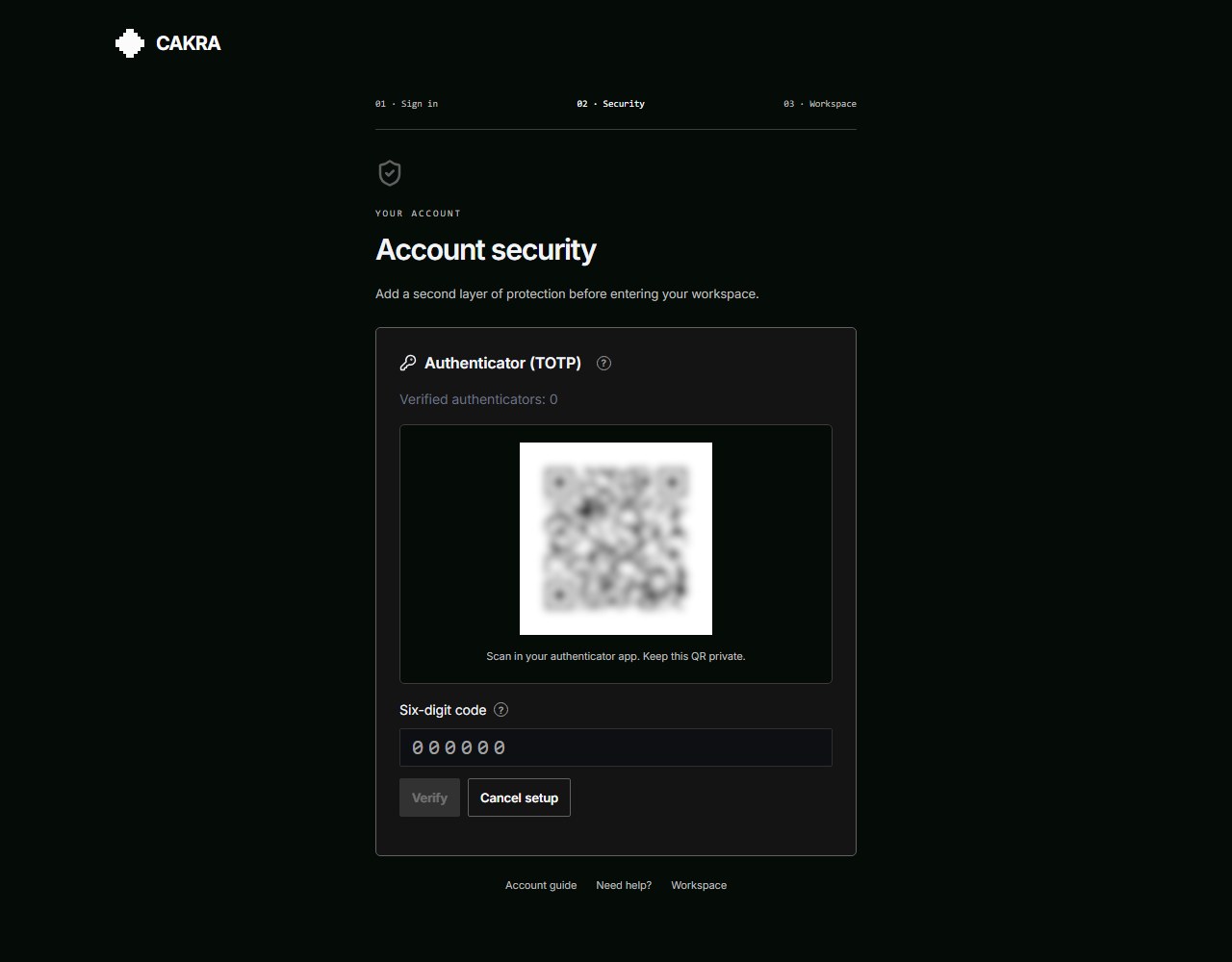
Security is completed before the workspace, not inside your analysis flow.